Your resume is in Word, and the application wants a Europass CV. First, work out what the application expects back: a PDF in the Europass layout that you upload or attach, or a Europass CV made on the official website.
The official editor at europass.europa.eu keeps your details in a Europass profile and imports Europass's own files. The Europass FAQ says an old Europass CV saved as a PDF or XML file can be imported, but one saved in Word or ODF, or as a PDF made from those files, can't. If the application requires a CV created in that editor, build it there. If you need a file to send, you can convert the resume you already have without retyping it.
Check what kind of file you have
- A Word file (.docx). The import reads the text in the body of the document, but not Word's page header or footer, so if your name and contact details sit in either, move them into the body first. Save an older .doc file as .docx.
- A PDF exported from Word or another app. If you can select and copy its text, it imports too, and unlike a .docx it keeps header and footer text and the links behind icons, such as a LinkedIn logo.
- A scanned PDF, including a phone scan saved as PDF. A scan holds only a picture of your resume, so it's the least reliable input. Text recognition reads only Latin-alphabet scans, so a scan in another script, such as Greek, Cyrillic, Arabic, Chinese, Japanese or Korean, won't import. If the build stops with "That doesn't look like a full CV yet", paste the text from your original file instead.
Choose the import path your application needs
- The application accepts a standalone PDF in the Europass layout. Import your existing resume and send the resulting PDF through its upload field or as an attachment.
- The application asks you to make your Europass CV on the Europass website. Use the official editor, which is free. The official guide has you fill in a Europass profile first, then build your Europass CV from it.
You can upload and share documents in the Europass Library.
Use the official editor if the application requires a CV created there.
Follow any template or file type named in the application. If Europass is not specified, compare local resume conventions in our international resume format guide.
Import the resume you already have
Open the Already have a CV? box on our Europass page.
- Start with the language menu. Keep original leaves the resume in the language you wrote it in. Open the menu, headed Document language, only if the application wants a different language, and pick it before you add your file, because the build rewrites the resume in that language.
- To import a file, drop your .docx or PDF onto the dashed area, or click it to choose the file. The build starts as soon as the file is in. Files can be up to 2MB.
- To paste instead, open Paste text, paste the whole resume, and press Build my Europass CV.
- The editor opens on your resume in the Europass layout, ready to edit.
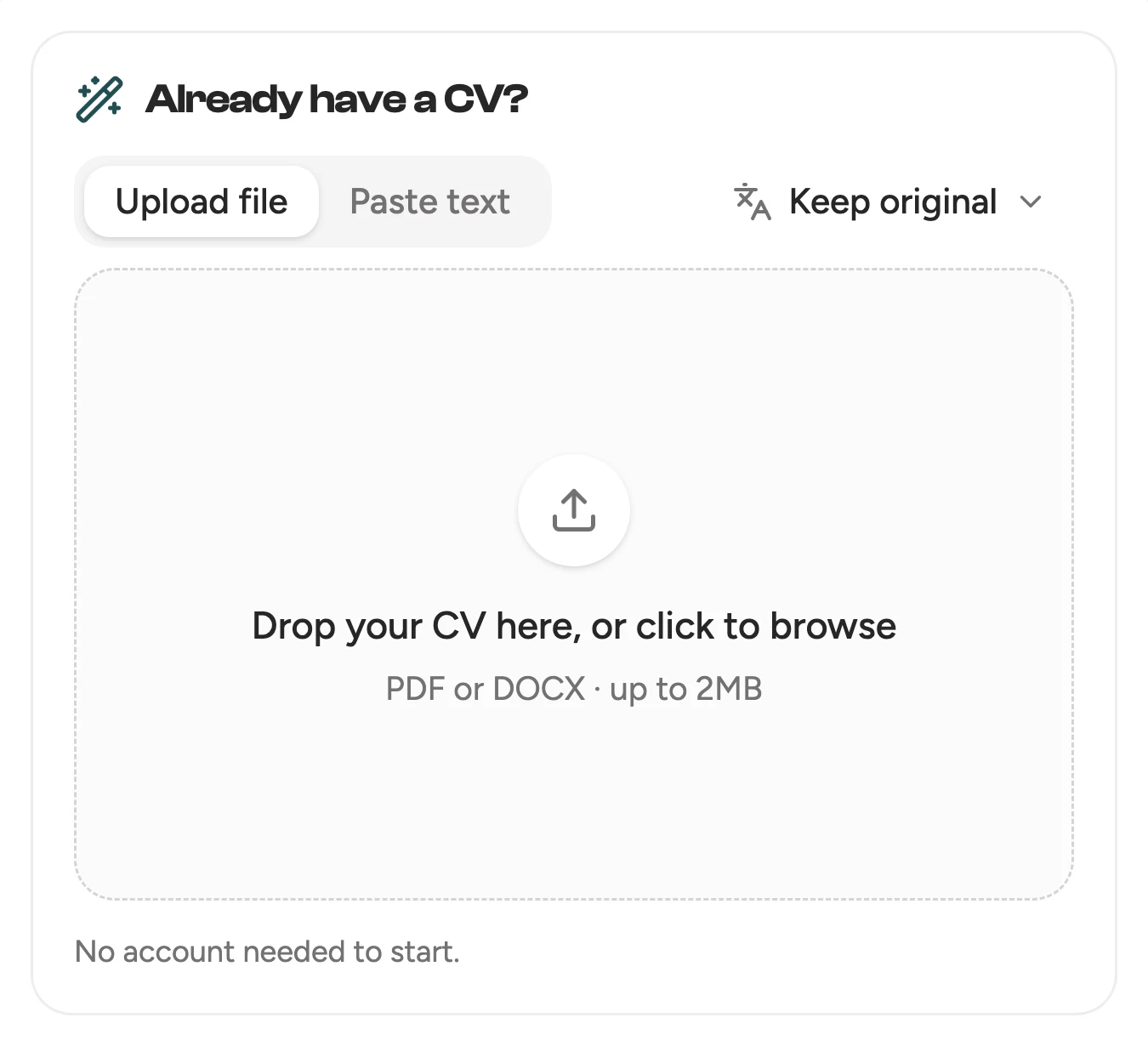
The import box on the Europass page, with the language menu on Keep original.
Check the details before exporting
- Name and contact details. Check your name, email, phone number and links, especially anything that sat in a Word header or footer.
- Dates. The Europass design prints month and year, such as 03/2021. A year on its own comes out as 01/2019, and any entry without an end date reads Present, so check every start and end month.
- Job titles and employers. Each title is printed in capitals with the employer beside it. Check that each title sits with the right employer and dates.
- Education. If you picked another document language, the build may have swapped a degree title for a local equivalent, so put each official title back exactly as it appears on your diploma, and read the rest of the translation line by line.
- Photo and date of birth. Both are optional in Europass, and neither comes across from your file. Add them in the editor if the application, or hiring custom where you're applying, calls for them.
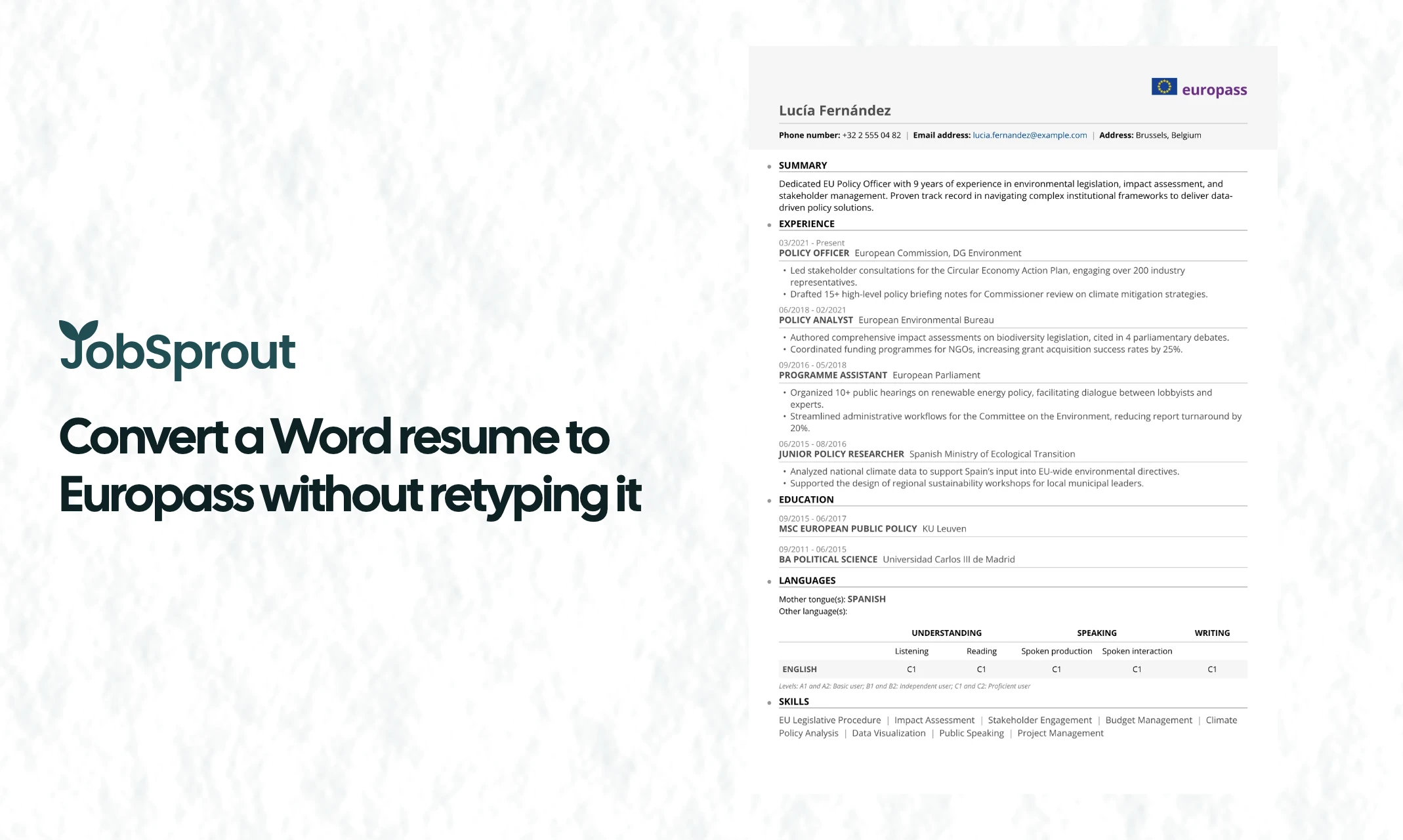
Languages change the most. A language marked Native goes on the mother-tongue line. One with a level the layout recognises gets a row in a CEFR grid: five skills (listening, reading, spoken production, spoken interaction and writing), each rated from A1 to C2. A language without one is listed by name only. If your resume gives one level per language, that level fills all five columns, so "English (C1)" becomes a row that reads C1 five times. Words are turned into levels too: "fluent" shows as C2 and "intermediate" as B1.
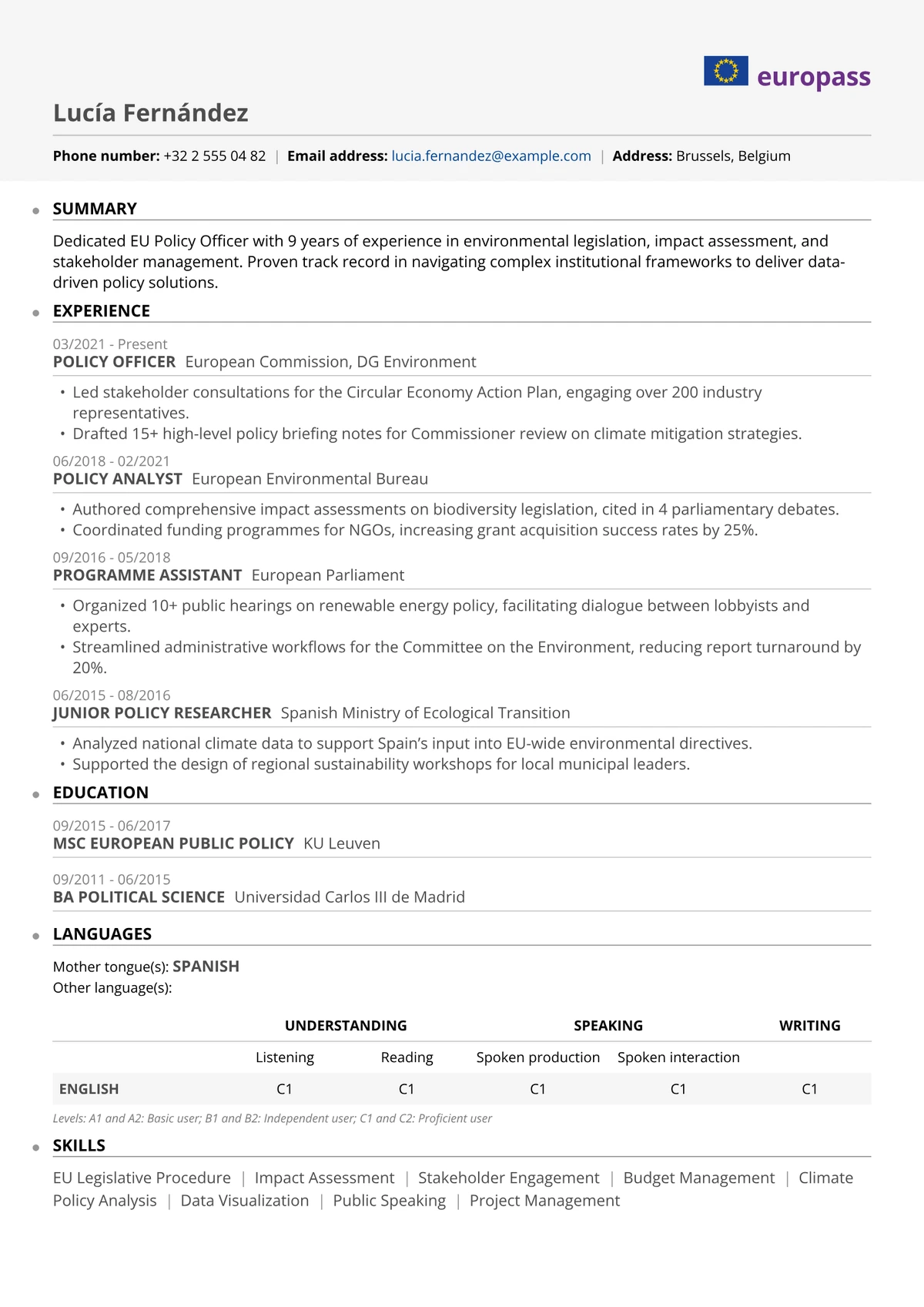
A fictional example, Lucía Fernández, in the Europass design. Her English has one level, C1, so all five skills read C1.
If your first language isn't on the mother-tongue line, set its level to Native in the Languages section. If another language is listed by name only, or its row doesn't match your real level, set all five skills yourself there.
Export the PDF your application asks for
Download your PDF from the editor's download menu, under More on a phone.
A resume you start from the Europass page is free to download in the Europass design.
When your details change, edit the resume in JobSprout and download a new PDF. Our PDF contains no structured data for import into the official Europass editor.
The writing is already done: convert your resume to Europass and spend the time on the checks above.